Your First Experiment (Happy Path)
This page walks a new developer through running one experiment on a local GLADOS, watching what happens at every layer, and then breaking it on purpose. It assumes you finished Getting Started From Zero and have http://localhost:3000 open and signed in.
The Usage page documents every field in the UI. This page is narrower: one experiment, start to finish, with the internals exposed so you know where to look when it does not work.
What you are about to run
The "Add Nums" default experiment uses example_experiments/python/addNums.py. It reads two integers x and y from an INI config file, and writes a two-line CSV:
Addition,Subtraction
8,2
You will sweep x and y from 1 to 10. Neither parameter has a default set, so GLADOS takes the full cross product: 100 trials. Each trial runs the script once with its own generated config file. If you give a parameter a default, the sweep changes to one-factor-at-a-time around the defaults, which is far fewer trials. The Permutations section explains the rule.
Part 1: The happy path in the UI
Step 1. Open the default experiment
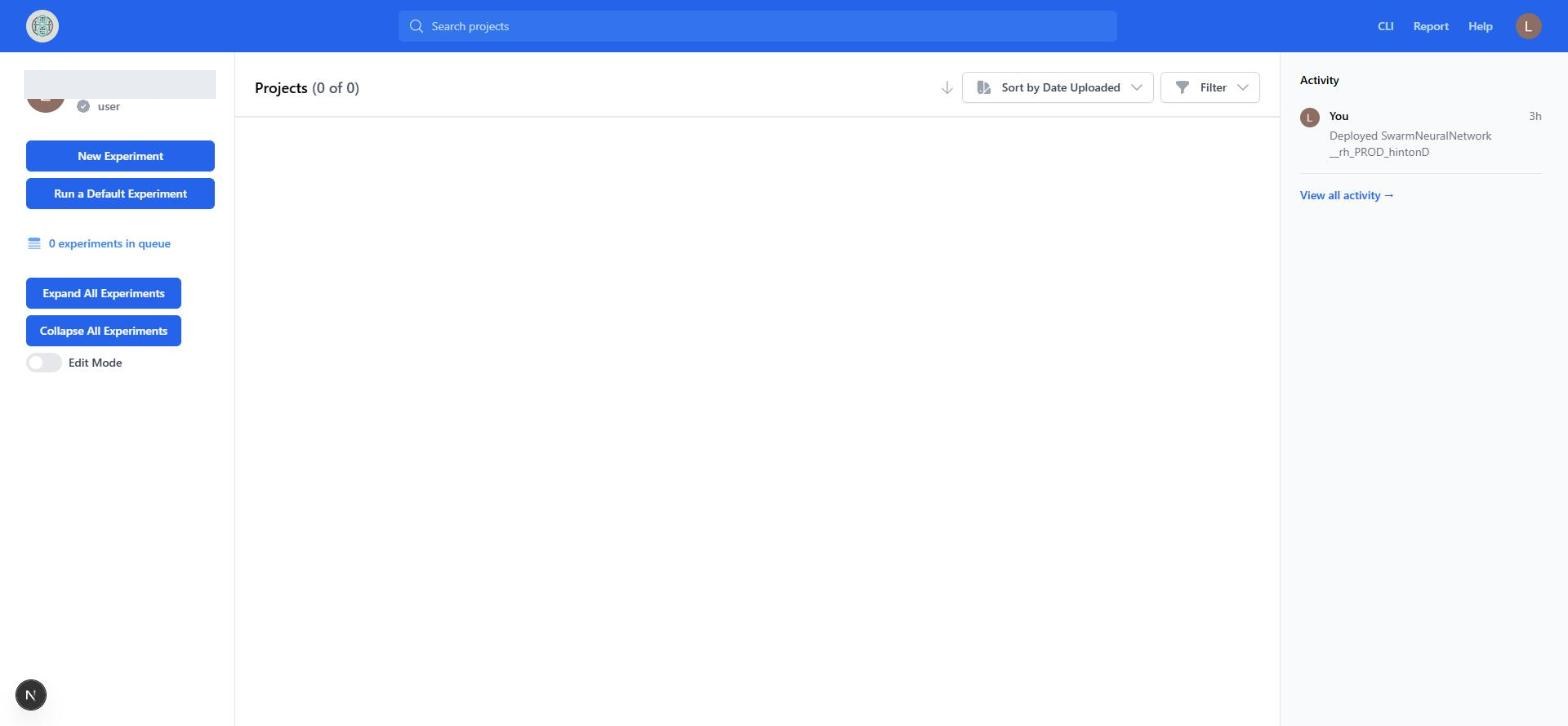
A fresh account sees an empty dashboard. The "Activity" panel on the right is a hard-coded placeholder, not real data.
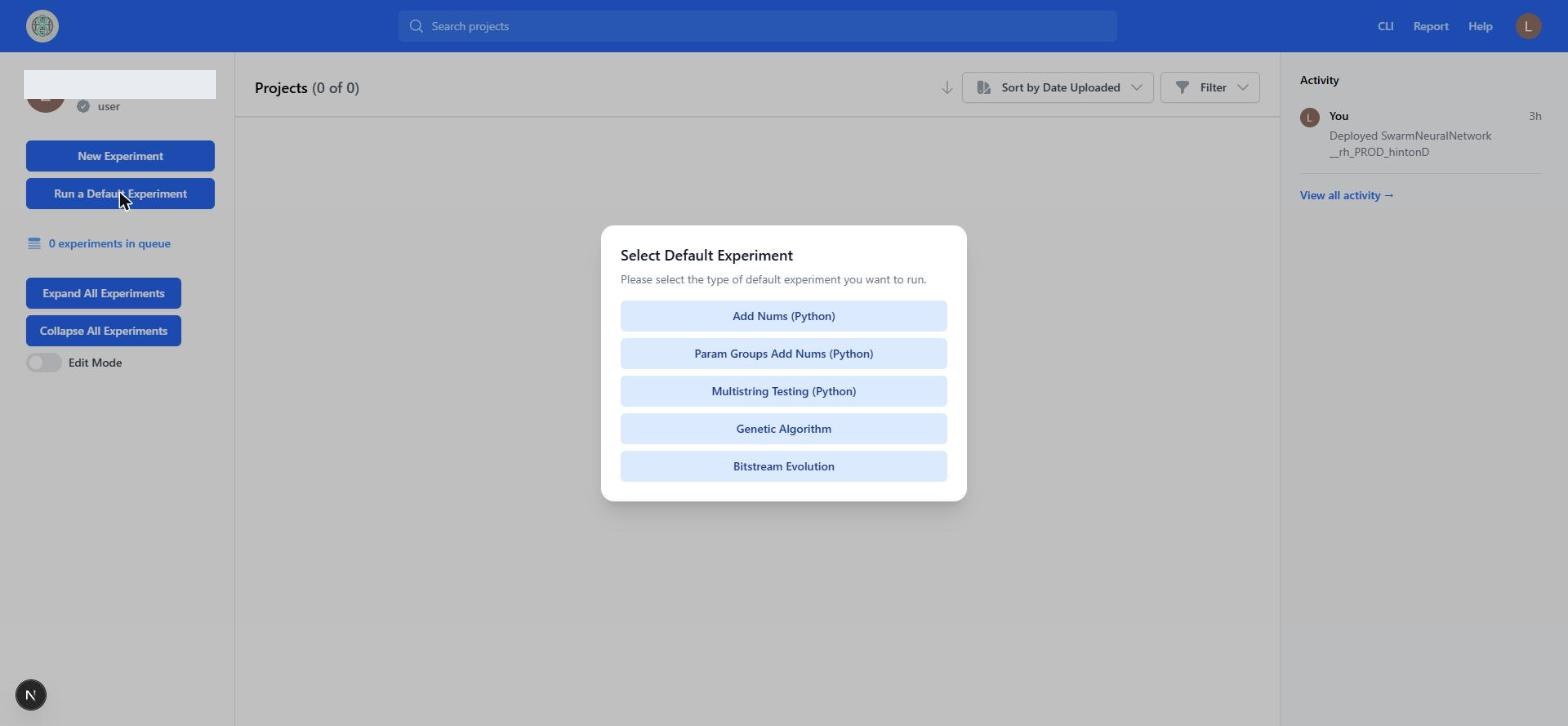
Click Run a Default Experiment in the left sidebar. A modal titled "Select Default Experiment" lists five presets. Pick Add Nums (Python).
Behind the scenes the frontend downloads addNums.py from GitHub and uploads it to your local database for you. If you click Next before that finishes you will see "Still setting up... wait a couple seconds and try again." Wait and try again.
Step 2. Walk the tabs
The form slides in from the right with six steps across the top. Every step has a Number of Workers box, Cancel, Back, and Next at the bottom.
-
Information. Already filled in. The important fields are
Trial Result=AddNumResult.csv(the file the runner reads each trial's output from) andConfig File Format=ini. LeaveTrial Result Line Numberat 0. Give the experiment your own name so you can find it later.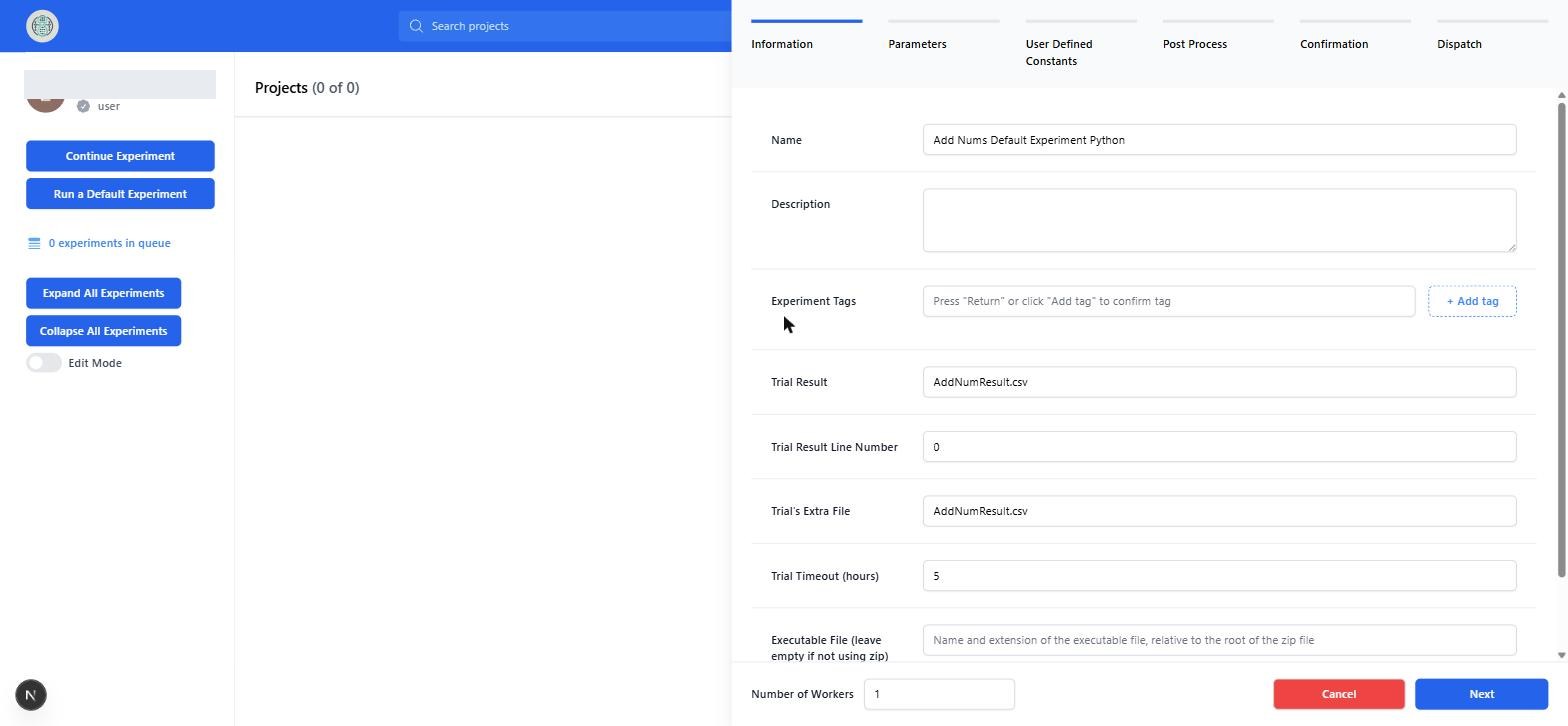
-
Parameters. Two integer parameters
xandy, each min 1, max 10, step 1, with the "Default?" switch off. The "Expected Permutations" counter in the corner shows 100. Keep the full 10×10 run: the timings and the chart check below assume 100 trials, and it only takes a few seconds.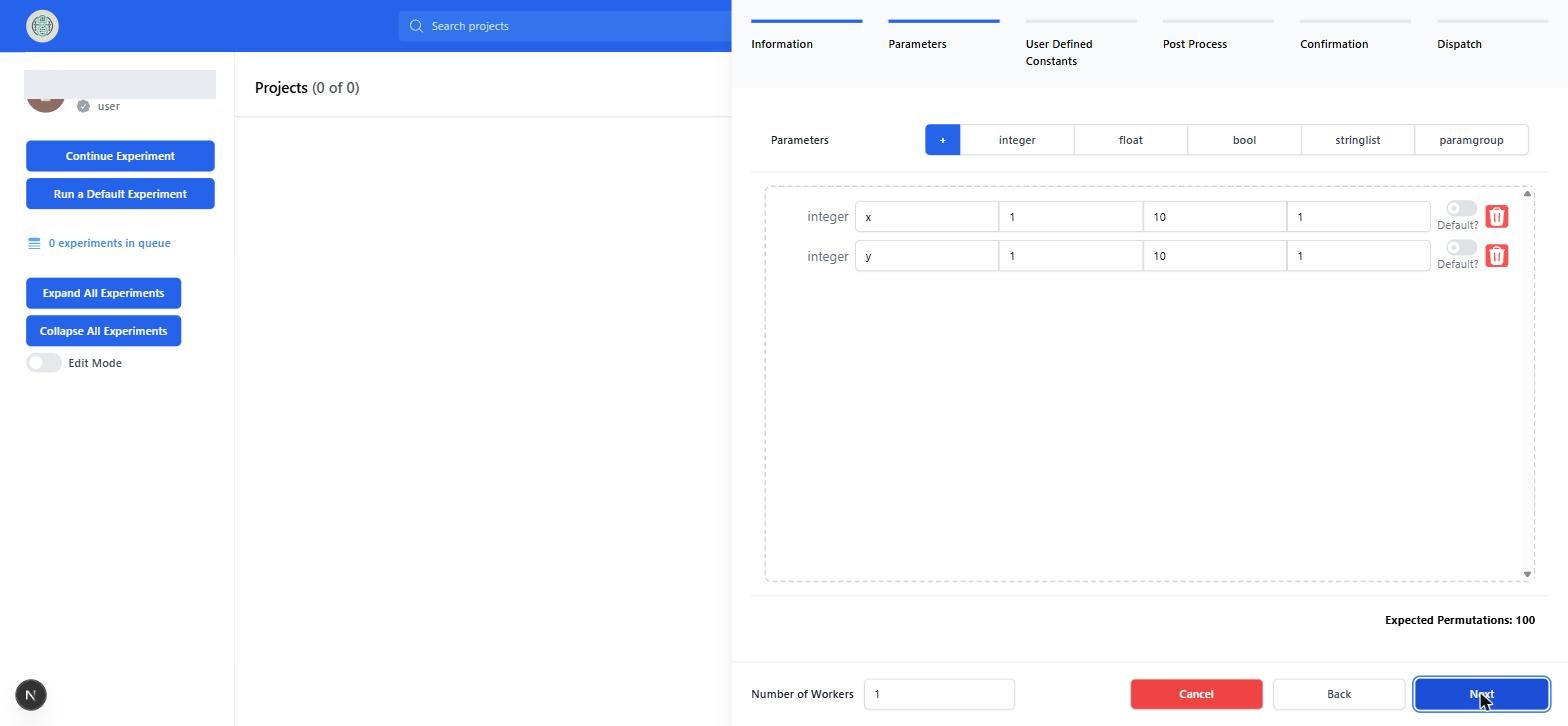
-
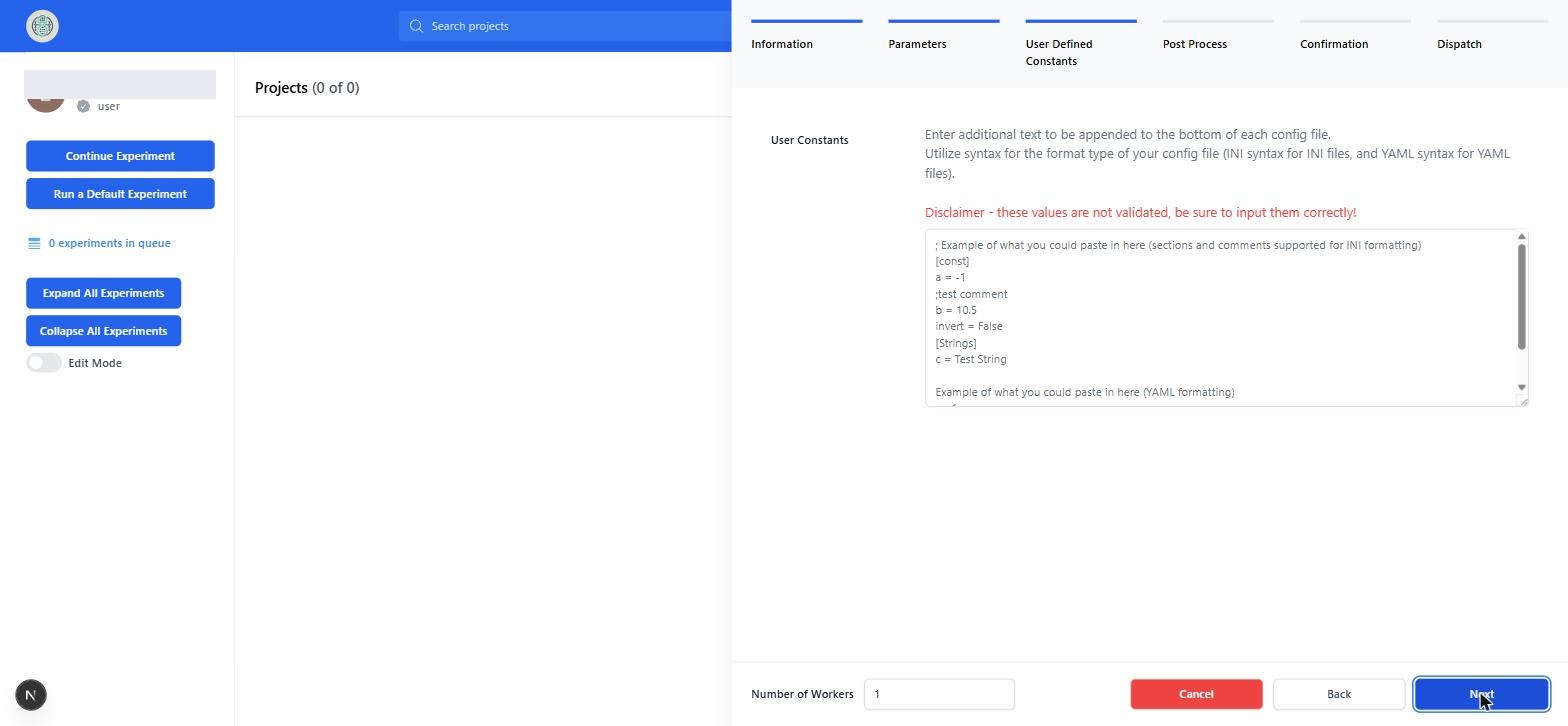
User Defined Constants. Empty. Anything you type here is appended verbatim to every generated config file, and the red disclaimer is accurate: nothing is validated. Leave it empty for now.
-
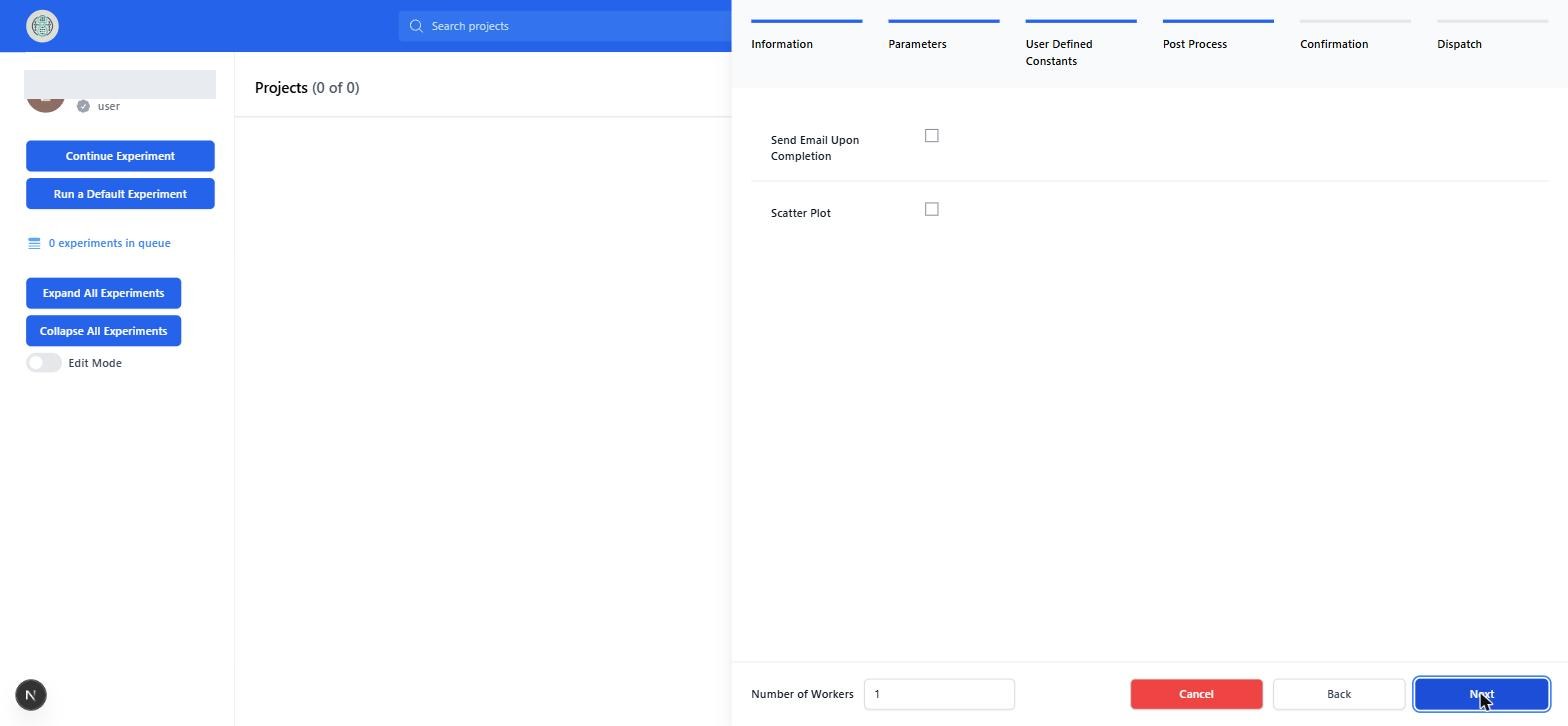
Post Process. Leave both checkboxes off. "Send Email Upon Completion" needs Gmail credentials in the secrets file. "Scatter Plot" needs two column names from your results.
-
Confirmation. The raw JSON that will be stored as the experiment document. Skim it. This is exactly what you will see in MongoDB later. Note
"default": -1on each parameter, which is how "no default" is encoded, and"file", the id of the uploaded script in GridFS.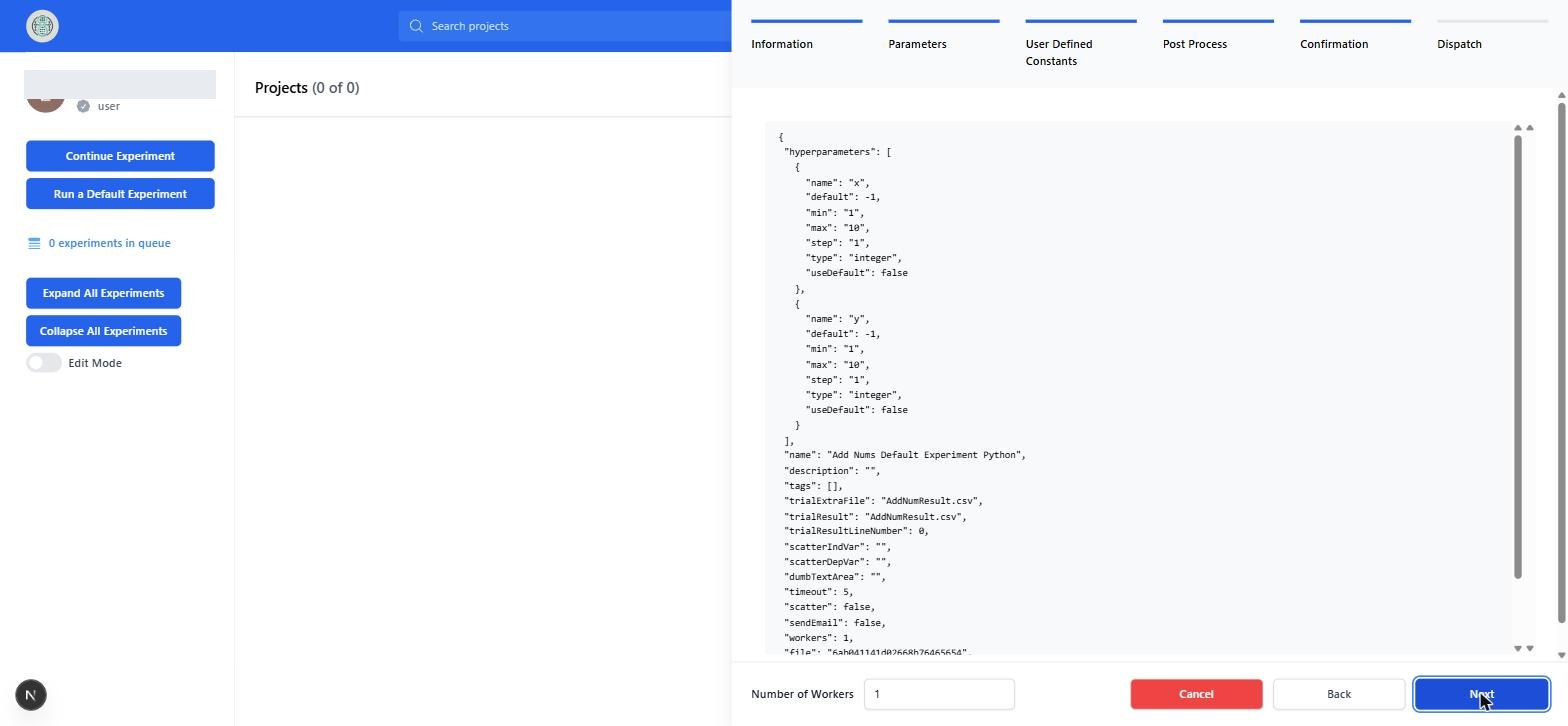
-
Dispatch. Normally you would drop a file here. For a default experiment
addNums.pyis already marked "Selected" in the "Recent Files" table below the drop zone. Click Dispatch.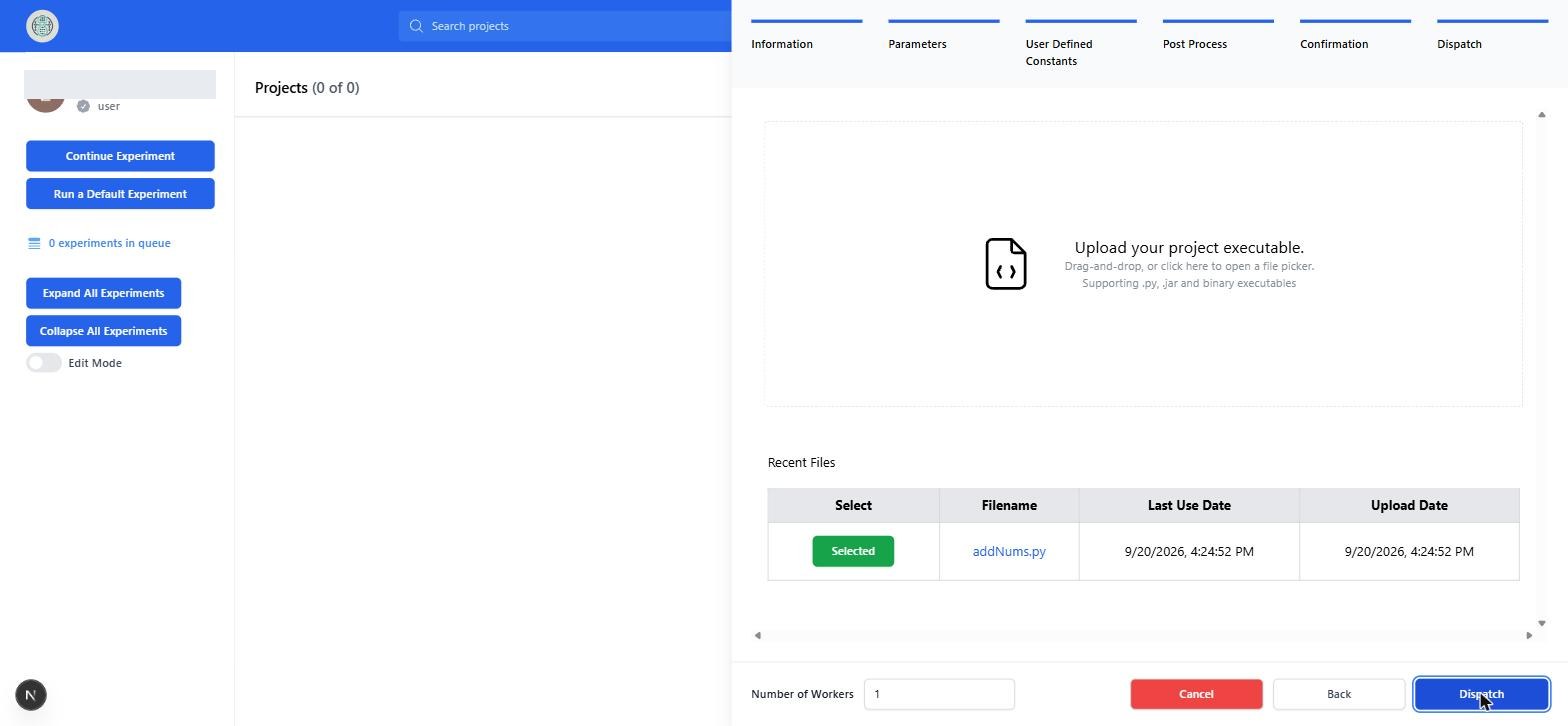
You should see the green toast "Started experiment!" and a new row in the list. The form panel briefly reopens as a blank "New Experiment" form with red required fields before closing on its own. That is a quirk, not an error.
Number of Workers does nothing
The value is saved on the experiment document but the runner never reads it. All trials are launched at once regardless.
Step 3. Watch it run
The row's status text moves through three phrases:
-
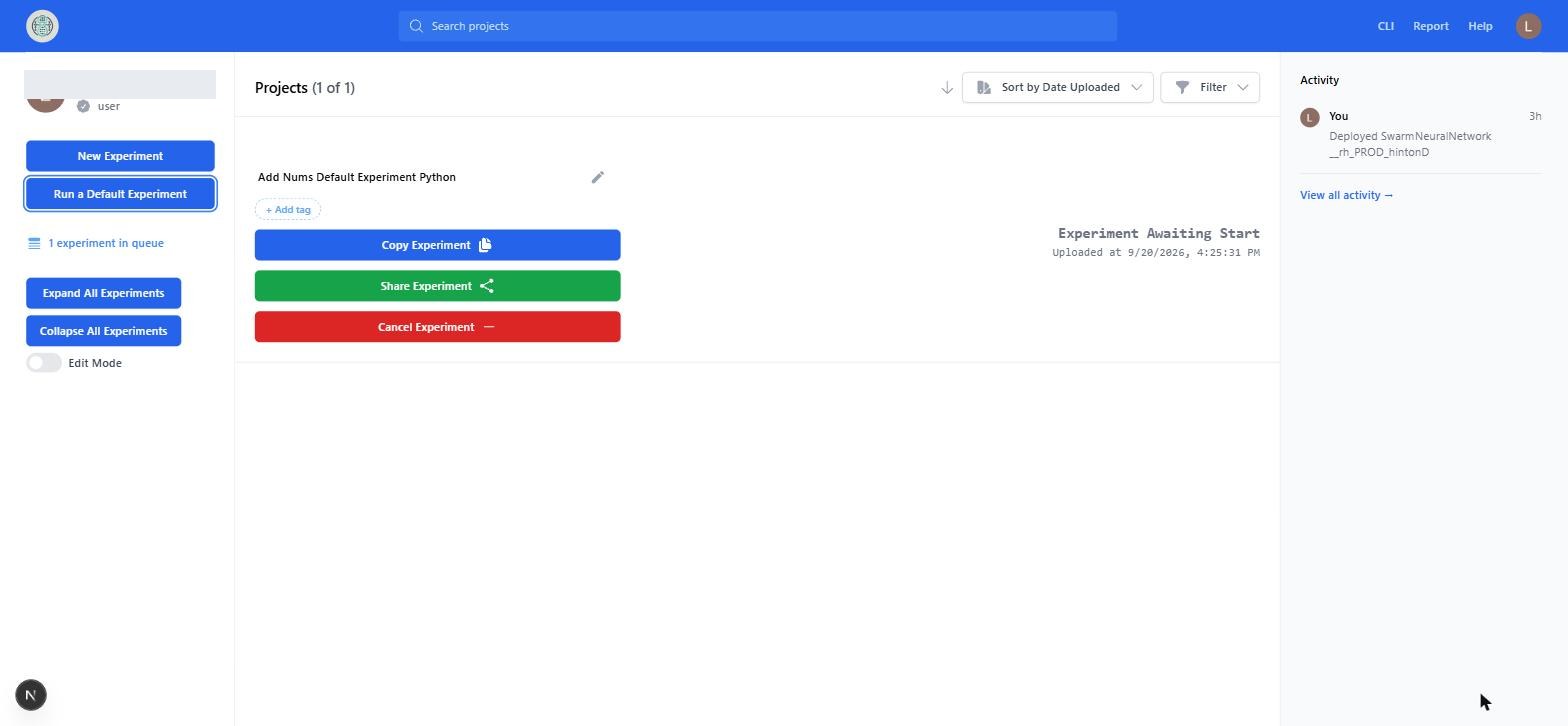
Experiment Awaiting Start. The document exists but no runner has picked it up. The sidebar counter "N experiments in queue" counts experiments in this state. The buttons available now are Copy, Share, and Cancel.
-
Experiment In Progress. The runner is up. The row shows successes, failures, and runs remaining. An Open Live Log button appears and polls the runner pod's output every five seconds.
-
Experiment Completed. The row shows fails, successes, timestamps, total time, and average time per run.
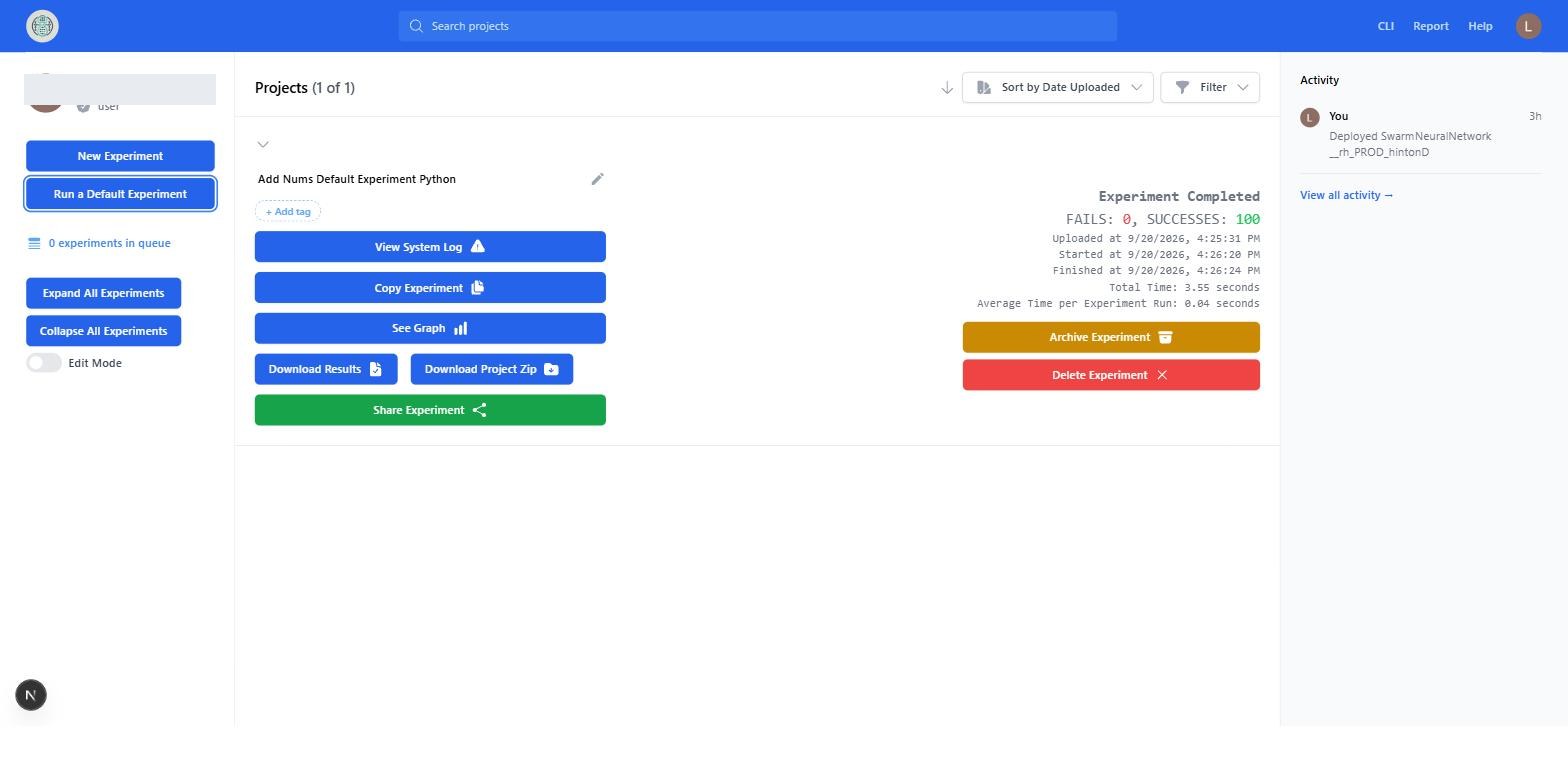
Timing from a real local run of this experiment on a laptop, measured on 2026-09-20:
| Phase | Time |
|---|---|
| Awaiting Start (runner pod pulling image and starting) | about 50 s the first time, a few seconds after that |
| Running 100 trials | 3.55 s |
| Runner Job and pod deleted after finishing | about 60 s later |
"Awaiting Start" is long on the first run because the runner container has to be created. If it sits there for several minutes, something failed silently. Jump to Part 3.
Step 4. Look at the results
Expand the row. The buttons that appear once an experiment is finished:
- Download Results gives
results.csv. One row per trial with theAdditionandSubtractioncolumns from the script plus thexandyvalues that produced them. - Download Project Zip gives every trial's config file and log, plus any extra file you asked for.
-
See Graph opens the chart modal on
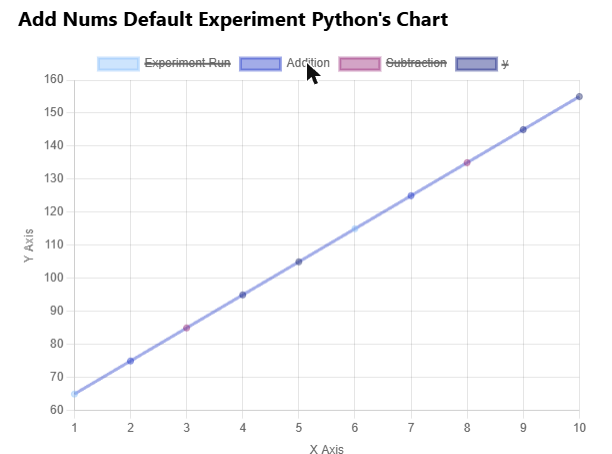
results.csv. All series start hidden, so the chart is empty at first. Pickxas the X-Axis Column, then click the Addition legend entry to show it. Changing the x-axis hides every series again, so pick the axis first. Tick "Aggregate data?" with modesumand you get a straight line from 65 to 155, which is the sum over all tenyvalues ofx + y, or10x + 55. That is a quick sanity check that the results are real.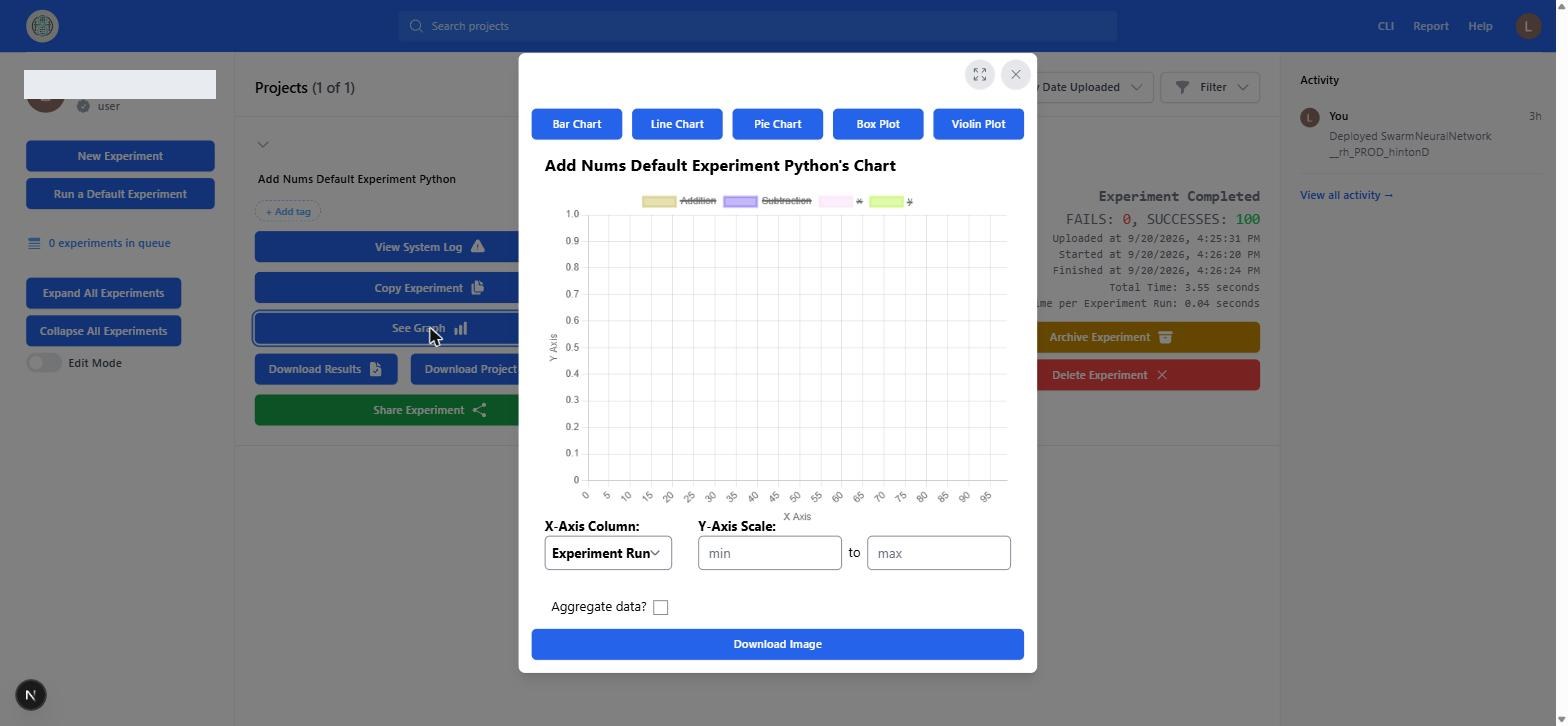
 - View System Log opens the runner's own log for the whole experiment.
- Copy Experiment reopens the form prefilled so you can change parameters and rerun.
- Share Experiment copies a link. Anyone signed in who opens it gets read access.
- Archive Experiment and Delete Experiment. Archiving hides the row immediately and the header changes to "Projects (0 of 1)". Open the Filter menu and switch on "Include Archived" to see it again with an Unarchive Experiment button.
- View System Log opens the runner's own log for the whole experiment.
- Copy Experiment reopens the form prefilled so you can change parameters and rerun.
- Share Experiment copies a link. Anyone signed in who opens it gets read access.
- Archive Experiment and Delete Experiment. Archiving hides the row immediately and the header changes to "Projects (0 of 1)". Open the Filter menu and switch on "Include Archived" to see it again with an Unarchive Experiment button.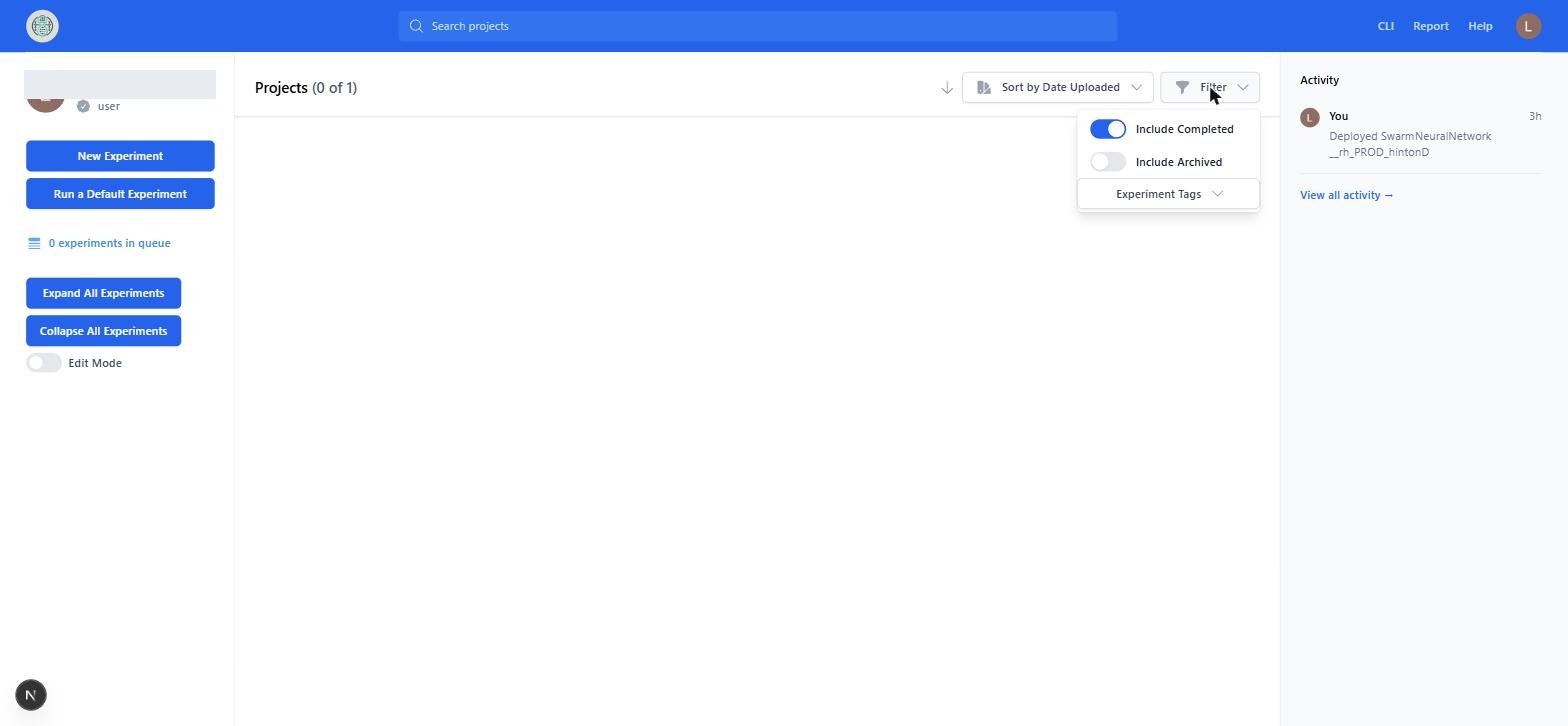
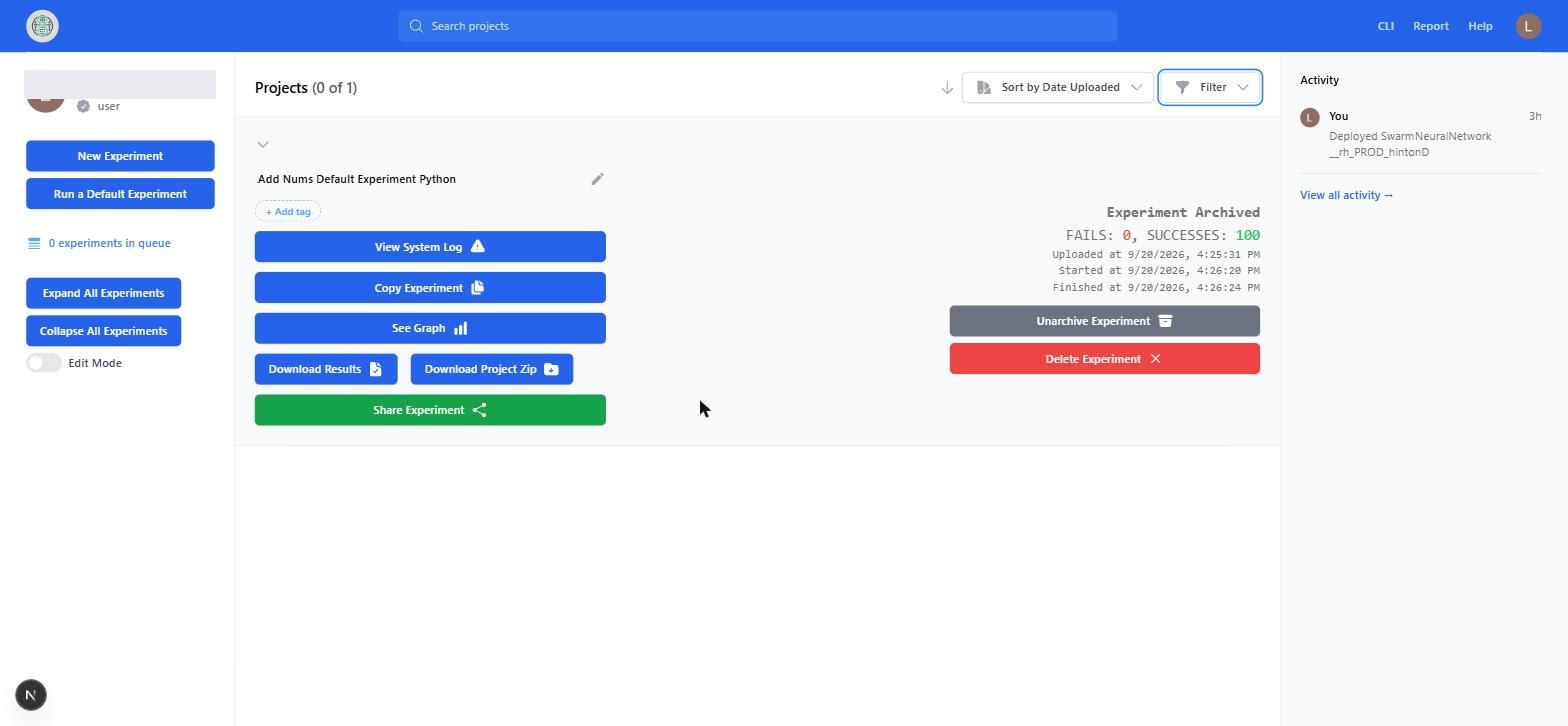
That is the whole user-facing loop. Now look underneath it.
Part 2: What just happened, layer by layer
Keep a container terminal open next to the browser and repeat the run. The sequence is the same for every experiment.
sequenceDiagram
    participant UI as Browser
    participant FE as glados-frontend
    participant DB as MongoDB
    participant BE as glados-backend
    participant K8s as Kubernetes
    participant R as runner-<expId> Job
    UI->>FE: Dispatch (server action)
    FE->>DB: insert experiment doc, status CREATED
    UI->>FE: POST /api/experiments/start/<expId>
    FE->>BE: POST /experiment {id}
    BE->>K8s: create Job runner-<expId>
    R->>BE: POST /updateExperiment status RUNNING
    R->>BE: POST /getExperiment
    R->>BE: GET /downloadExpFile?fileId
    R->>R: generate configs, run trials
    R->>BE: POST /uploadResults, /uploadZip
    R->>BE: POST /updateExperiment finished, COMPLETED
    R->>BE: POST /uploadLog
    FE-->>UI: live updates over SSE /api/experiments/listen
2.1 The frontend writes the document
Clicking Dispatch calls a Next.js server action that inserts the form JSON into the experiments collection of the gladosdb database with status: "CREATED", finished: false, and your user id as creator. The uploaded file was already stored in the GridFS bucket fileBucket when you picked it, and the document only holds its id.
The dashboard does not poll. It holds a server-sent events connection to /api/experiments/listen that pushes every experiment you created or that was shared with you. That is why rows update without a refresh.
2.2 The frontend asks the backend to start it
The frontend then posts to its own route /api/experiments/start/<expId>, which forwards to the backend inside the cluster at http://glados-service-backend:5050/experiment. The backend returns 200 immediately and creates the Kubernetes Job in the background.
Watch it appear:
kubectl get jobs
kubectl get pods
You will see a job and a pod both named runner-<expId>. The pod uses the runner image that Tilt built from apps/runner. The whole Job (and its pod) is deleted automatically about 60 seconds after it finishes (ttlSecondsAfterFinished: 60 in apps/backend/job-runner.yaml). After that, kubectl get jobs no longer lists it and kubectl logs job/runner-<expId> fails, so look quickly or read the uploaded log instead.
2.3 The runner does all the work
Everything below happens inside that pod. Follow along with:
kubectl logs -f job/runner-<expId>
- Sets the experiment
statustoRUNNING. Note that the runner never touches MongoDB directly. Every read and write goes through the backend's HTTP API. You can see this from the other side withkubectl logs deploy/glados-backend, which fills withPOST /updateExperimentlines while a runner is active. - Fetches the experiment document and downloads the executable into
ExperimentFiles/<expId>/. - Detects the file type with libmagic. Python, JAR, ELF binary, and zip are the supported kinds. A zip is unpacked and the
Executable Filefield says what to run inside it. - For Python files, runs
pipreqsto guess dependencies andpip installs them, unless you shipped auserProvidedFileReqs.txtin a zip. The log showsGenerated pip requirementsat this point. - Generates one config file per permutation into
configFiles/0.ini,1.ini, and so on. Your User Defined Constants text is the template and{x}style placeholders are substituted. The log lineGenerated 100 configsconfirms the count.
A real runner log for this experiment looks like this, trimmed:
INFO | glados | GLADOS Runner Started
INFO | glados.experiment | Downloading file for 6ab0413b1d02668b76465656
INFO | glados.experiment | Raw Filetype: Python script, ASCII text executable, Filtered Filetype: python
INFO | glados.experiment | Generated pip requirements
INFO | glados.experiment | param x varies, adding to batch
INFO | glados.experiment | param y varies, adding to batch
INFO | glados.experiment | Generated 100 configs
INFO | glados.experiment | Now Running 100 trials
INFO | glados.experiment | Running Trial 0
INFO | glados.experiment | Wrote config0 to a file
INFO | glados.experiment | Running Trial 2
...
- Launches every trial at once in a process pool. Trial
nruns in its own foldertrial<n>aspython ../addNums.py ../configFiles/<n>.ini, with the timeout from the form. Standard output and error go toResCsvs/log<n>.txt. - After each trial, reads line
Trial Result Line Numberoftrial<n>/AddNumResult.csvand appends it, plus that trial's parameter values, toresults.csv. - Uploads
results.csvto GridFS bucketresultsBucketand a zip of configs, logs, and extra files tozipsBucket. - Sets
finished: trueandstatus: "COMPLETED", uploads its own log tologsBucket, and deletes its working directory.
Trials 0, 2, 4, 3, 1 start in that order in the real log, which is the process pool at work. The Python 3.9 end-of-life warnings at the top of the log are from the Google auth library and are harmless.
2.4 Poking at the database
Tilt forwards MongoDB to port 30000 on your machine. The root user name and password are in helm_packages/mongodb-helm/tilt/values.yaml under auth. From the container terminal:
mongosh "mongodb://<user>:<password>@localhost:30000/gladosdb?authSource=admin&directConnection=true"
Useful queries:
// every experiment, one line each
db.experiments.find({}, {name:1, status:1, passes:1, fails:1, totalExperimentRuns:1, finished:1})

// the most recent one in full
db.experiments.find().sort({created:-1}).limit(1).pretty()

// what got uploaded for it (replace the id)
db.getCollection('resultsBucket.files').find({filename: /<expId>/})
db.getCollection('logsBucket.files').find().sort({uploadDate:-1}).limit(3)

// make yourself an admin
db.users.updateOne({email: "you@example.com"}, {$set: {role: "admin"}})
Collections you will see: experiments, users, accounts, sessions, defaultExperiments, shareLinks, and the GridFS pairs fileBucket, resultsBucket, zipsBucket, logsBucket (each has .files and .chunks).
Part 3: When it goes wrong
Run these on purpose once. Each one teaches you where a class of failures shows up.
Experiment 2: a trial that fails
Upload example_experiments/python/addNumsFailsOnXis1Yis5.py as a new experiment with the same settings as Add Nums. One trial writes to standard error, and the runner treats any standard error output as a failed trial.
What you should observe:
- The row finishes with
FAILS: 1. statusin the database is stillCOMPLETED. The runner sets that unconditionally. The only failure signal is thefailscount, so never filter by status when looking for broken runs.- The failing trial's message is in
ResCsvs/log<n>.txtinside the Project Zip, and in the System Log.
Experiment 3: the first trial fails
Upload example_experiments/python/alwaysFail.py. When trial 0 fails, the runner aborts the whole experiment. No results.csv and no zip are uploaded, so Download Results returns nothing useful. The row shows "Experiment Aborted". The reason is only in the System Log.
Experiment 4: a timeout
Upload example_experiments/python/addNumsTimeOutOnXis1Yis5.py and set Trial Timeout (hours) to something tiny like 0.001. The hung trial is killed after the timeout and counted as a failure.
Stuck at "Experiment Awaiting Start"
The document was written but no runner ever started. The backend swallows errors from job creation, so the UI never learns. Check in this order:
kubectl get jobs. If there is norunner-<expId>, the backend failed to create it. Readkubectl logs deploy/glados-backend.- If the job exists but the pod is
ImagePullBackOfforErrImagePull, therunnerimage was not built or Tilt's registry is down. Look at therunnerresource in the Tilt UI. - If the pod is
Pending, minikube is out of memory or CPU.kubectl describe pod <pod>says which. - A job named
runner-<expId>already existing (from a previous attempt) makes the create fail with a conflict.kubectl delete job runner-<expId>and dispatch again.
"Error - Backend Offline" in the sidebar
The frontend cannot reach the backend service. Check the glados-backend resource in Tilt. It crashes at startup if MongoDB is not up yet, so restart it once MongoDB is green.
Live log says "Experiment is not running!"
The live log only works while status is RUNNING and the runner pod still exists. For short experiments it is gone before you click. Use View System Log after completion instead.
Rerunning after a code change to the runner
Changes under apps/runner are not hot-reloaded into a running pod. Tilt rebuilds the image, and the next experiment you dispatch uses it. Changes under apps/frontend and apps/backend sync into the running pods within seconds.
Part 4: Uploading your own program
Once the defaults work, try your own. The rules the runner enforces:
- Accept the config file path as the first command line argument. Read it as INI (
[DEFAULT]section) or YAML, matching theConfig File Formatyou pick. - Write results as a CSV with a header row and at least one value row, named whatever you put in
Trial Result.Trial Result Line Numberpicks which value row is collected, and -1 means the last. - Write nothing to standard error unless you want the trial marked failed.
- Python runs on 3.9 in the runner image. Java must be a runnable JAR. C must be a Linux ELF binary. Anything with several files goes in a zip, with
Executable Filenaming the entry point.
The example_experiments folder has a working sample of each kind, including YAML variants and a numpy example that exercises dependency installation.
Things a new team should know before changing this flow
These are real behaviors in the code today, not opinions. Each is a reasonable first task.
- Dispatch failures are invisible. The backend hands job creation to a background worker and drops the result. A 409 conflict or RBAC error leaves the experiment at
CREATEDforever. statusis not a failure signal. Every experiment endsCOMPLETED. The UI derives "Aborted" frompasses == 0.- All trials run concurrently with no limits. The runner pod has no CPU or memory request, and the process pool has no worker cap. A large sweep can evict everything else on the node.
- Standard error means failure. Any library that logs warnings to stderr will fail its trial.
- Failed trials may not appear in
results.csv. The error-row writer is called with a null writer for trials after the first, so thefailscount increments but the row is missing. - Cancel is written by the frontend, not the runner. Cancelling deletes the job and sets
CANCELLEDdirectly in the database. The runner never learns it was cancelled. - The runner pins pydantic 1.x and Python 3.9. Do not upgrade either without reworking the validators in
apps/runner/modules/data/experiment.py.